Deal history
Review recorded changes to a deal and find the activity you need.
Use History to review recorded changes to a deal. It helps you understand what changed, when it changed and who made the change.
Open deal history
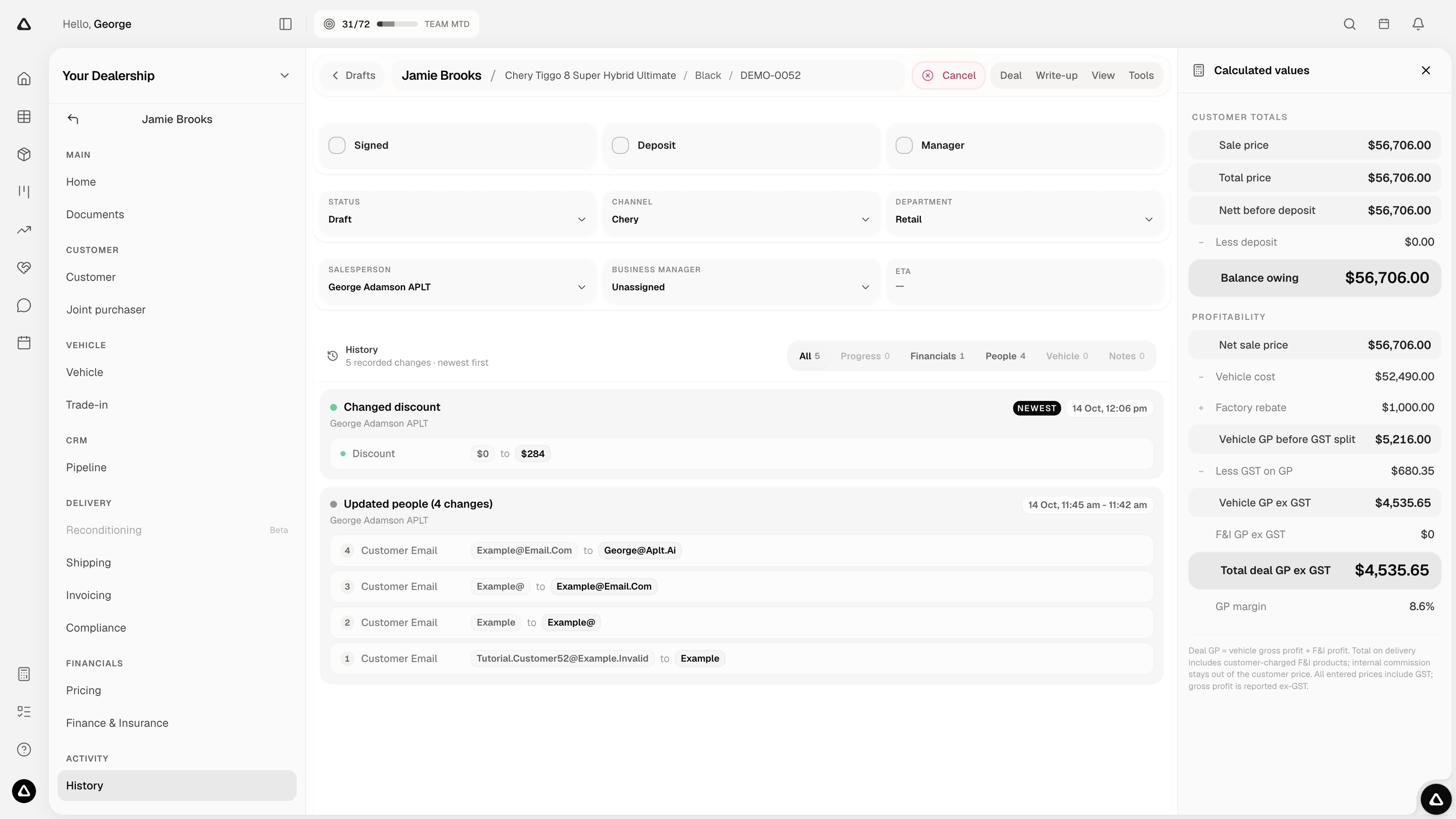
Open the deal page, then select History under Activity in the left-hand navigation. You can also select View → History from the menu at the top of the deal page.
The timeline shows recorded changes newest first.
Read the timeline
Each activity card shows a summary, the person associated with the changes, and the date or time. Related changes may appear together in one card.
For field changes, review the individual entries within the card to see the values that changed. Milestone entries highlight steps in the deal’s progress, such as creation or a change in status.
Start with the newest activity when checking a recent change, then scroll through the earlier entries for context.
Filter the activity
Use the filters at the top of the timeline to narrow the entries:
- All shows all displayed activity.
- Progress focuses on the deal’s progress.
- Financials focuses on financial changes.
- People focuses on people-related changes.
- Vehicle focuses on vehicle changes.
- Notes focuses on note activity.
Each filter shows a count. Filters with no matching activity are unavailable. Select All to return to the full timeline.
If there are no entries
No edit history yet means there are no changes displayed in the timeline. If a filter has no matches, return to All to check the rest of the activity.
History is for reviewing the record. To change a current value, return to the relevant section of the deal page.