Deal page overview
Find your way around the deal page, open a deal and understand its main areas.
The deal page brings together the customer, vehicle, documents, delivery information and financial details for a deal. Use it to review the record, move between its sections and see what needs attention.
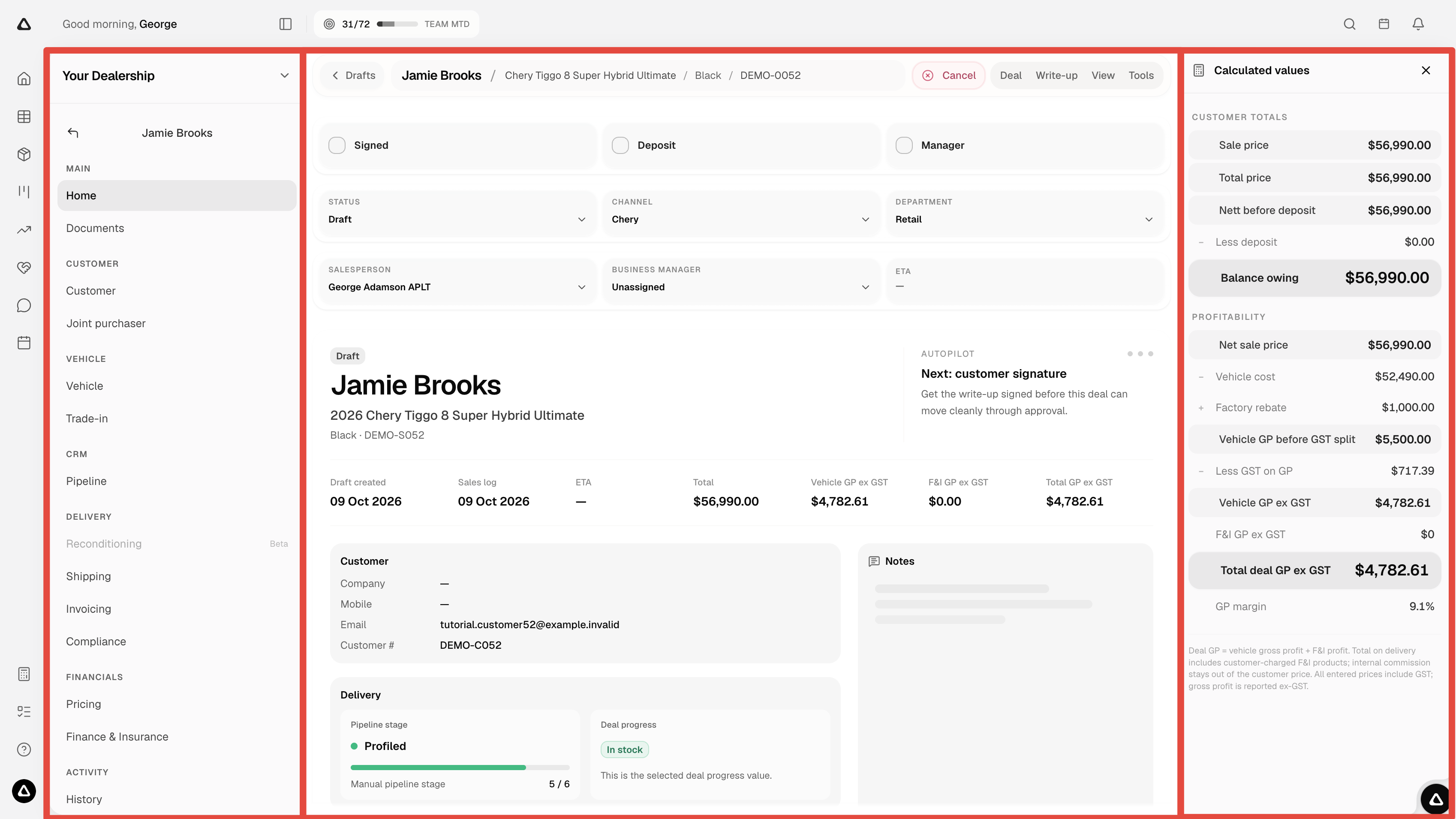
The three outlined areas are the deal navigation on the left, the main content in the centre, and Calculated values on the right.
Find your way around
Deal navigation
Use the navigation on the left to choose the part of the deal you want to work with. The selected section opens in the main content area.
- Home gives you an overview of the deal, and Documents brings together its documents.
- Customer and Joint purchaser hold purchaser details, while Vehicle and Trade-in cover the vehicles involved.
- Pipeline shows the deal’s pipeline.
- Shipping, Invoicing and Compliance group the delivery information.
- Pricing and Finance & Insurance contain the financial details.
- History shows the deal’s activity.
Reconditioning is shown as Beta and is currently unavailable.
Main content
The centre of the page shows the section you’ve selected. In the screenshot, Home is open, with the customer and vehicle summary, deal status, key dates, totals, notes and delivery information.
For a draft, the Signed, Deposit and Manager checks appear near the top. These help you see which steps still need completing before the deal moves forward. Read Understanding draft deals for more about these checks.
The bar across the top identifies the deal and contains the Deal, Write-up, View and Tools menus. Changes you save to the deal’s details also appear in its write-up. You don’t need to enter the same information again in a separate write-up.
Calculated values
Calculated values shows a breakdown of the deal’s customer totals and profitability, including the deposit, balance owing and gross profit (GP), where your access allows these figures.
Use this area to review the numbers while working through the deal. To change the underlying details, go to the relevant section, such as Pricing or Finance & Insurance.
On narrower screens, select Calculated values to open the panel. Profitability figures are hidden when Customer view is active.
Open a deal
From Drafts
Open Drafts through the workspace navigation, or open the Command Center from the Autopilot icon in the bottom-right corner, search for Drafts and select it. These routes are available wherever you are in the workspace.
Select the customer name to open the deal page, as shown in the video below. You can also select the deal number.
This video shows how to open a deal from the Drafts page.
From the Sales log
Open the Sales log through the workspace navigation, or search for Sales log in the Command Center and select it. Then select the customer name or deal number to open the deal page.
Explore the deal in more detail
Start with Home to get your bearings, then use the left-hand navigation to open the section you need. You’ll stay within the same deal as you move between sections.
For the draft checks and moving a deal forward, see Understanding draft deals and Approval rules.