Export the Sales log
Export your current Sales log view or all deals, with the columns and file format you need.
Download deal information from the Sales log as a CSV or Excel file. Choose whether to export your Current view or Everything, along with the columns and file format you need.
Open Export
Open the Sales log through the workspace navigation, or open the Command Center using the Autopilot button in the bottom-right corner, search for Sales log and select it.
Open Table controls, then select Export.
If you only need a particular set of deals, choose your period, date basis, search and filters before exporting. See Find and filter deals.
Choose columns
Under Columns, choose:
| Option | What is included |
|---|---|
| Current view | The columns included in exports for your current view. By default, this follows the columns shown in the table. |
| Everything | All available table columns your export access allows. |
You can set whether individual columns appear in current-view exports using the Export settings in Advanced column options. This lets you include a column in the file independently of whether it is displayed on screen.
See Customise your Sales log for arranging columns and saved views.
Export your current view or everything
To export a specific set of deals, first narrow the Sales log in the usual way: choose a view, set the period and date basis, and apply search or filters. Then open Export and select Current view under Rows to download that filtered list.
The export menu offers two row scopes; it does not let you select individual rows:
Under Rows, choose:
| Option | What is included |
|---|---|
| Current view | The deals in the current list after your filters and search, including its carry-over and unscheduled sections. |
| Everything | Deals across all time, rather than just the current period or filtered list. Your access and the selected sales channel still apply. |
You can choose the column scope separately. For example, export your filtered Current view with Everything selected under Columns.
Choose a file format
Under File format, choose:
| Format | Use it for |
|---|---|
| CSV | A simple table of values for importing into another system or opening in a spreadsheet. |
| Excel (.xlsx) | An Excel workbook with the exported deals in a flat table. |
| Detailed Excel | An Excel workbook that keeps the current view’s sections and grouping, including carry-over and unscheduled sections where present. |
Detailed Excel always uses the current view’s deals. Selecting it switches Rows to Current view.
Download your export
Check whether you are exporting Current view or Everything, plus your columns and file format, then select Download. Wait for the export to finish and open the downloaded file.
The export contains the deal information available when it is generated. Changes made later in Autopilot will not update the downloaded file.
Your access determines which deals and fields can be exported. If the export fails, read the message shown and check your selections before trying again.
Example of a Detailed Excel export
This is the file created in the video above. It keeps the Carry over, current view and Unscheduled deals sections together, with column headings repeated for each section.
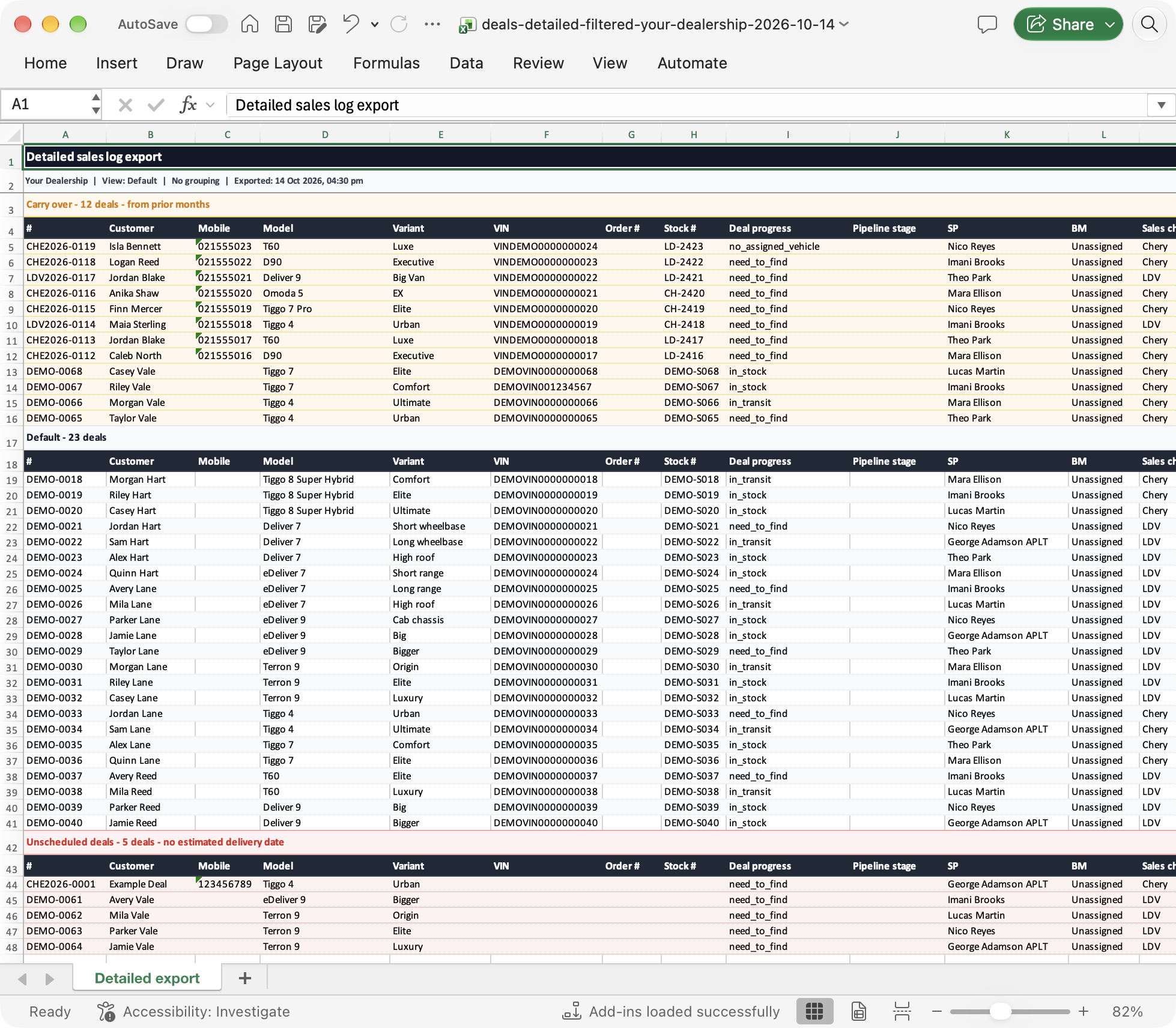
Enlarge the screenshot to see the exported columns and section headings.